How the Desktop App Works
Quick reference for the overlay, screenshots, mic, and interview sessions. You can also control the Windows or Mac app remotely from your browser once a relay session is connected.
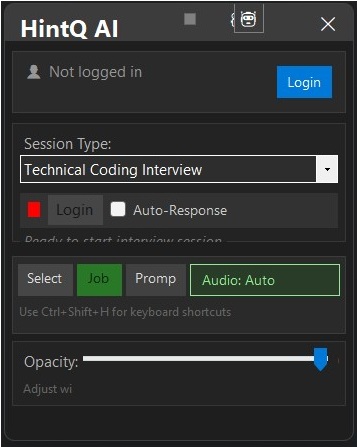
Login screen — sign in to link the desktop app to your account.
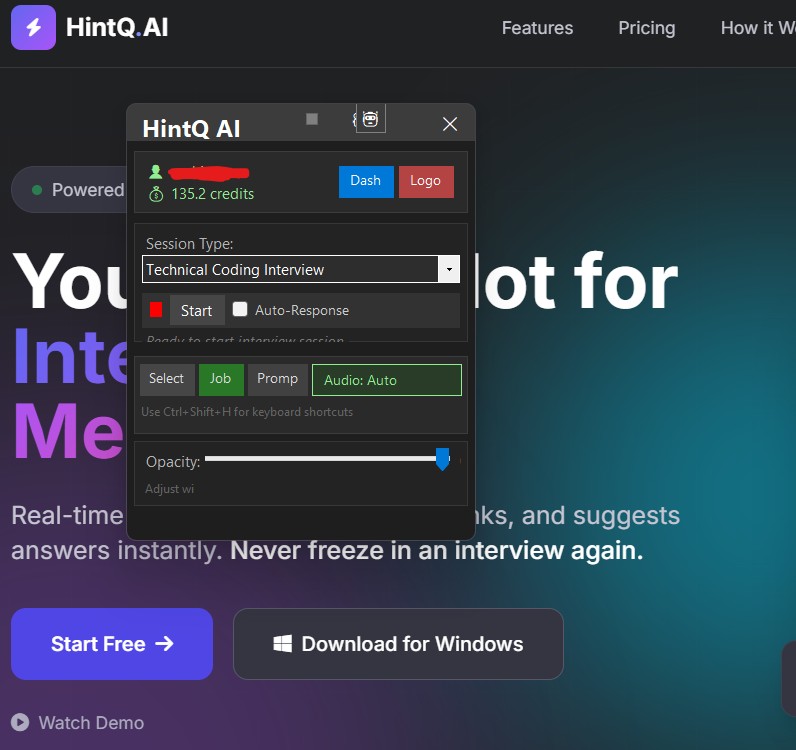
Dashboard — shows credits, quick controls and session history.
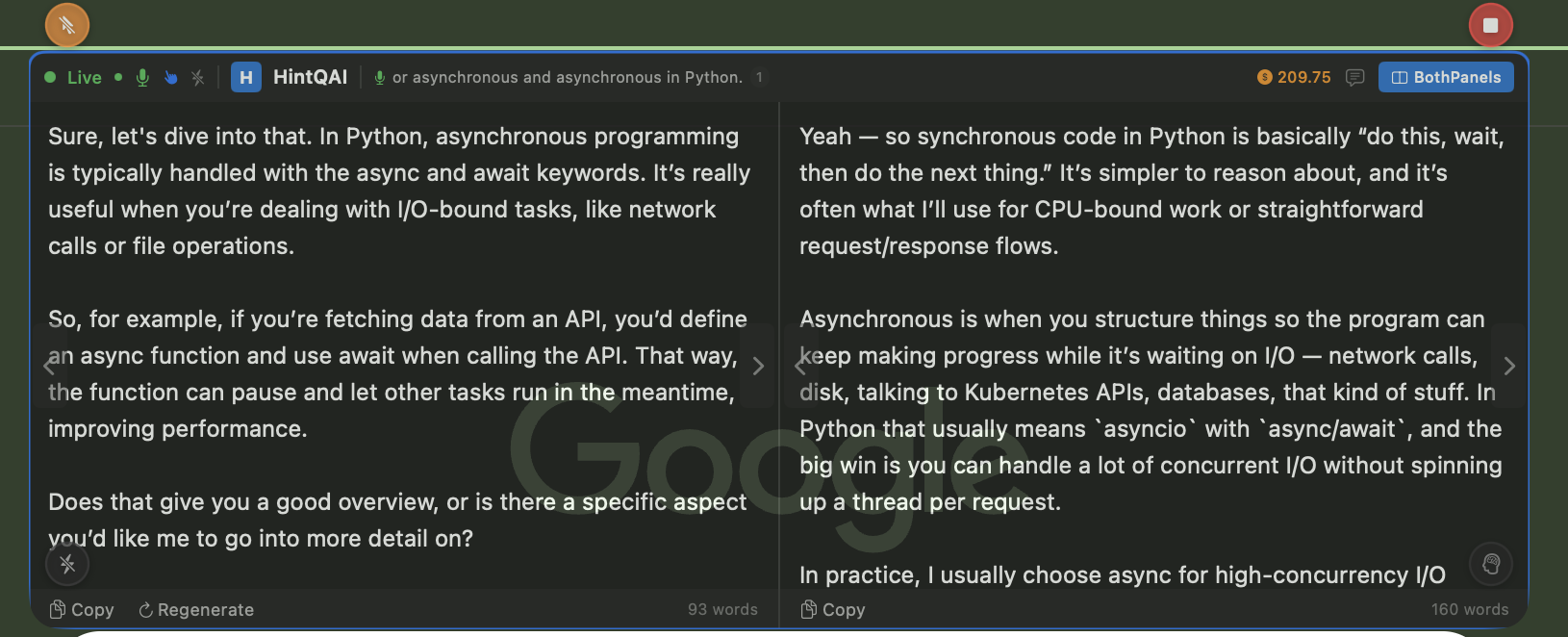
Interview session started — overlay and live transcription active.
Keyboard Shortcuts
All desktop shortcuts use modifier keys plus the key shown below.
Highlighted rows are the ones you’ll use most during a live session.
| Shortcut | Action |
|---|---|
| Ctrl+Shift+S | Essential Start interview session. |
| Ctrl+Shift+Enter | Essential Get AI answer from current transcript. |
| Ctrl+Shift+Space | Essential Take screenshot for AI analysis. |
| Ctrl+Shift+A | Essential Toggle auto-response. |
| Ctrl+Shift+M | Essential Mute / unmute microphone. |
| Ctrl+Shift+Q | Essential Stop session (or quit app if no session is running). |
| Ctrl+Shift+D | Essential Hide overlay / bubble mode. |
| — | Essential Show / hide dashboard. |
| Ctrl+Shift+H | Essential Show shortcuts help. |
| — | Open floating text input (add a note + transcript, then send). |
| Ctrl+Shift+R | Reset AI context / clear transcript & answers. |
| Ctrl+Shift+C | Clear captured screenshots. |
| Ctrl+Shift+G | Process / send queued screenshots. |
| Ctrl+Shift+J | Open job description editor. |
| Ctrl+Shift+P | Cycle panel mode (both / swapped / realtime only / smart only). |
| Ctrl+Shift+, | Scroll primary answer panel up. |
| Ctrl+Shift+. | Scroll primary answer panel down. |
| Ctrl+, | Scroll secondary / smart panel up. |
| Ctrl+. | Scroll secondary / smart panel down. |
| Ctrl+Shift+; | Previous answer in primary history. |
| Ctrl+Shift+' | Next answer in primary history. |
| Ctrl+; | Previous answer in secondary history. |
| Ctrl+' | Next answer in secondary history. |
| Ctrl+Shift+Arrow Keys | Move the overlay window. |
| Ctrl+Shift+= | Increase overlay size. |
| Ctrl+Shift+- | Decrease overlay size. |
| Ctrl+Shift+[ | Decrease overlay opacity. |
| Ctrl+Shift+] | Increase overlay opacity. |
| Ctrl+Shift+B | Toggle overlay visibility / compact mode. |
| Ctrl+Shift+T | Toggle click-through (clicks pass through the overlay). |
| Ctrl+Shift+V | Toggle hide-from-screen-capture / screen-share visibility. |
| Ctrl+Shift+L | Toggle dark / light theme. |
Windows uses Ctrl+Shift. macOS uses ⌘+Shift. Secondary-panel shortcuts use Ctrl (Windows) or ⌘ (macOS) without Shift.
| Shortcut | Action on Windows / Mac app |
|---|---|
| Ctrl+Shift+Enter | Essential Get AI answer on the connected desktop session. |
| Ctrl+Shift+Space | Essential Capture a screenshot on the desktop app. |
| Ctrl+Shift+A | Essential Toggle auto-response on the desktop app. |
| Ctrl+Shift+M | Essential Mute / unmute the desktop app microphone. |
| Ctrl+Shift+C | Clear transcription / screenshot buffer in the browser session. |
| Ctrl+P | Cycle answer panel layout in the browser UI. |
| Enter (in chat box) | Send a typed question to the shared desktop session. |
| Shift+Enter | New line in the chat box. |
Use Ctrl even on Mac browsers for these web shortcuts. Full overlay moves, opacity, and bubble mode still use the desktop app’s own hotkeys.